Turn plain lists into designed lists.
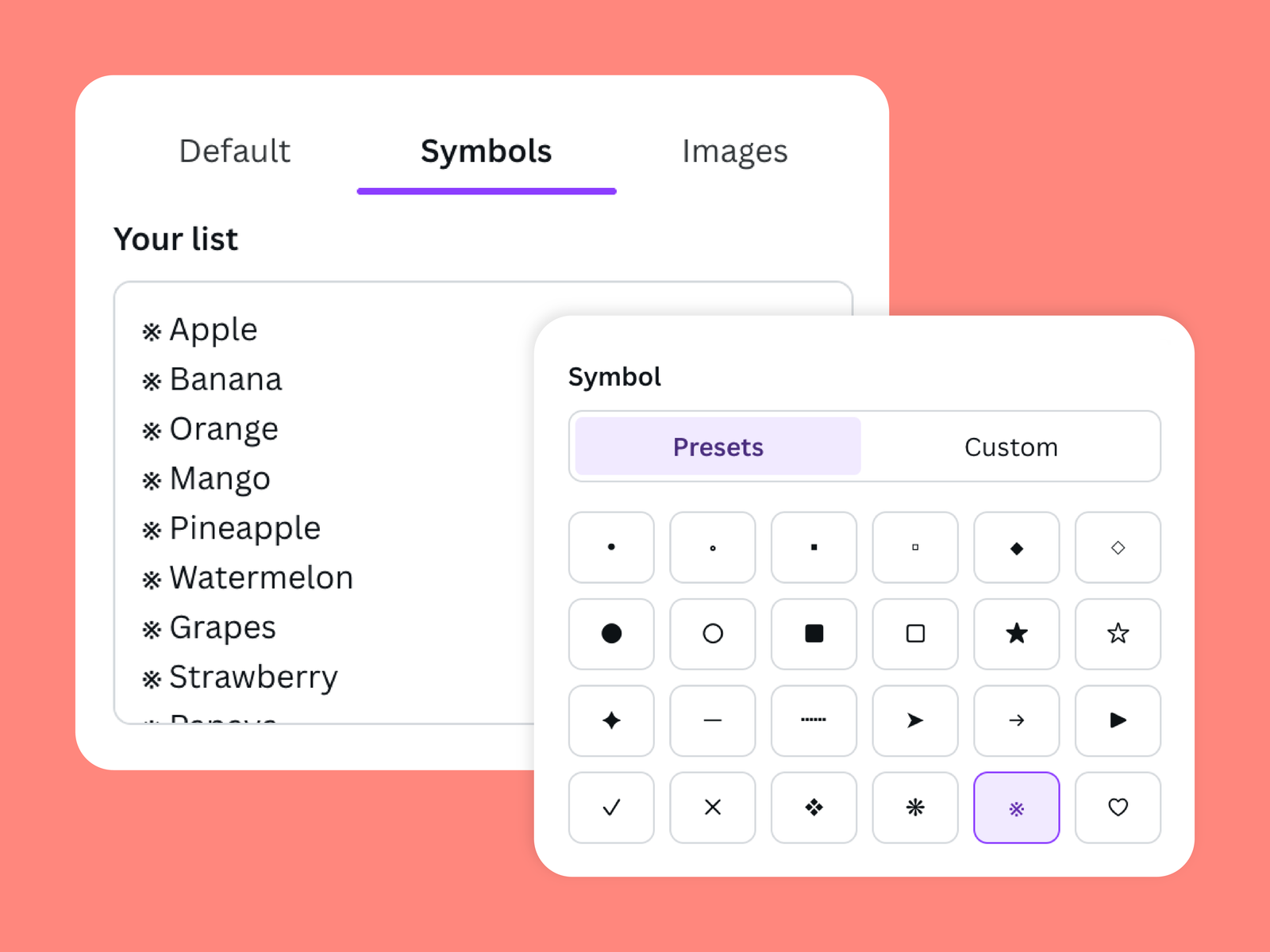
A list doesn't have to look like plain text. Choose bullets, symbols, or images to give your list a style that fits your design, then preview it before adding it to Canva.
What you can do
Purpose-built functionality crafted for daily workflows.
Choose your bullet style
Pick from standard bullets, symbols, or images.
Match the feel of your design
Give lists a look that works with the rest of your layout.
Preview before adding
Check how your styled list looks before placing it in your Canva design.
How it works
01 · Add your list
Enter or paste the text you want to style.
02 · Choose a style
Select standard bullets, symbols, or images.
03 · Preview and add
Review the result, then add the styled list to your Canva design.
Lists show up everywhere, from presentations and social posts to worksheets and guides. But plain bullets don’t always fit the look you’re going for.
Bullet Point Style gives you more options. Choose standard bullets, symbols, or images, preview your list, and bring the finished result into Canva.
Frequently asked questions
What kinds of bullet styles are available?
Can I preview my list first?
Can I use the designs and outputs for commercial projects?
More from Craft Mage
Explore other tools we've made to help you get things done.